Installing Formulus App
Complete guide for installing the Formulus mobile application on Android devices.
Overview
Formulus is available for Android devices through multiple installation methods. Choose the method that best fits your needs:
- Obtainium (Recommended) - App manager that installs Formulus directly from GitHub releases, including pre-release versions. Install Obtainium via F-Droid or direct download.
- Direct APK - Download and install the APK file directly from GitHub releases
- Development Build - For developers who want to build from source
Note: F-Droid is used to install Obtainium, which then installs Formulus. F-Droid does not directly install Formulus.
System Requirements
Before installing, ensure your device meets these requirements:
| Requirement | Minimum |
|---|---|
| Android Version | Android 7.0 (API level 24) or higher |
| Storage Space | 50 MB free space |
| Internet Connection | Required for initial setup and synchronization |
| Permissions | Camera, Storage, Location (for form features) |
Installation Methods
Method 1: Obtainium (Recommended)
Obtainium is the recommended method for installing Formulus. It allows you to install and update Formulus directly from GitHub releases, including pre-release versions. You can install Obtainium via F-Droid or by downloading it directly.
Step 1: Install Obtainium
You have two options to install Obtainium:
Option A: Install Obtainium via F-Droid (Recommended)
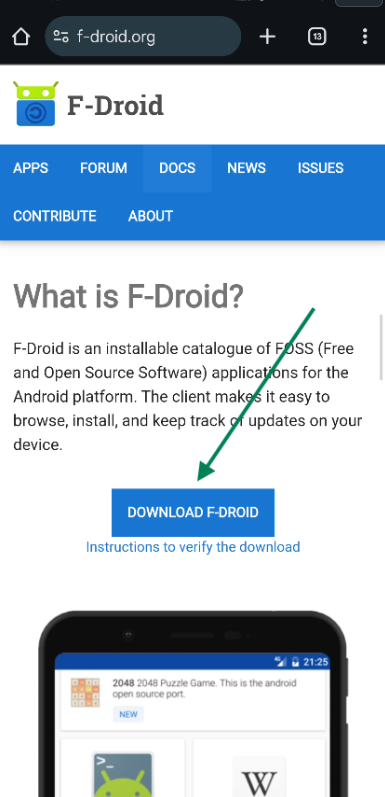
- Open your web browser and navigate to f-droid.org
- Locate the "DOWNLOAD F-DROID" button on the main page
- Tap the "DOWNLOAD F-DROID" button to download the F-Droid APK file
- Enable installation from unknown sources:
- Go to Settings → Security → Unknown Sources (or Apps → Special app access → Install unknown apps on newer Android versions)
- Select your browser (Chrome, Firefox, etc.) from the list
- Enable "Allow from this source" toggle switch
- Read and acknowledge the security warning about installing apps from unknown sources
- Return to your browser and open the downloaded F-Droid APK file
- Tap "Install" when prompted
- Wait for installation to complete, then tap "Open" to launch F-Droid
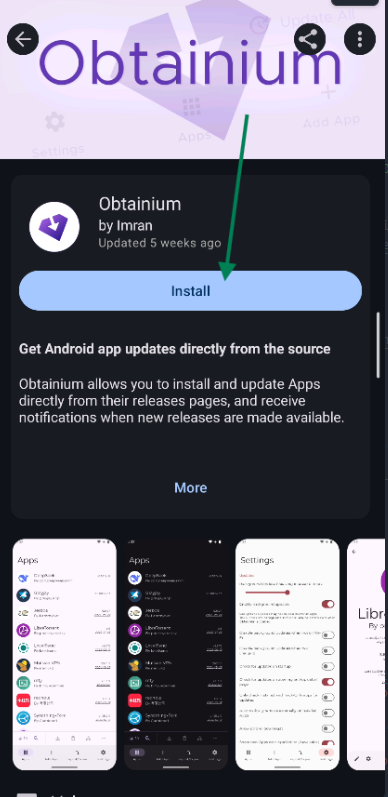
- Open F-Droid and search for "Obtainium"
- Tap on Obtainium in the search results
- Tap "Install" to install Obtainium
- Wait for installation to complete
Option B: Install Obtainium Directly from GitHub
- Download Obtainium from the Obtainium releases page
- Enable installation from unknown sources:
- Go to Settings → Security → Unknown Sources (or Apps → Special app access → Install unknown apps on newer Android versions)
- Select your browser from the list
- Enable "Allow from this source" toggle switch
- Acknowledge the security warning
- Install Obtainium by opening the downloaded APK file
- Tap "Install" when prompted in the installation confirmation dialog
- Wait for installation to complete
Step 2: Add ODE Repository to Obtainium
- Open Obtainium on your device
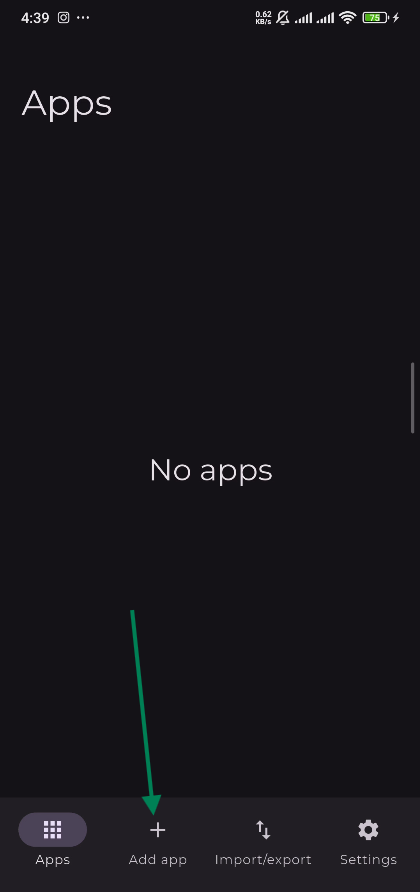
- Navigate to the "Add app" tab in the bottom navigation bar (indicated by a "+" icon)
- Enter the GitHub repository URL in the "App source URL" field:
- The field should contain:
https://github.com/OpenDataEnsemble/ode - Ensure the full URL is entered correctly
- The field should contain:
- Configure GitHub options (important for pre-release versions):
- Enable "Include prereleases" toggle - This is crucial for installing alpha/beta versions of Formulus
- Enable "Fallback to older releases" toggle - This allows Obtainium to use older releases if newer ones are unavailable
- Tap the "Add" button to save the repository
- Wait for Obtainium to fetch the repository information and available releases
Important: Make sure "Include prereleases" is enabled (toggle switched to the right/purple) to see and install pre-release versions like v1.0.0-alpha.12.
Step 3: Install Formulus
- Open Obtainium and navigate to the "Apps" tab
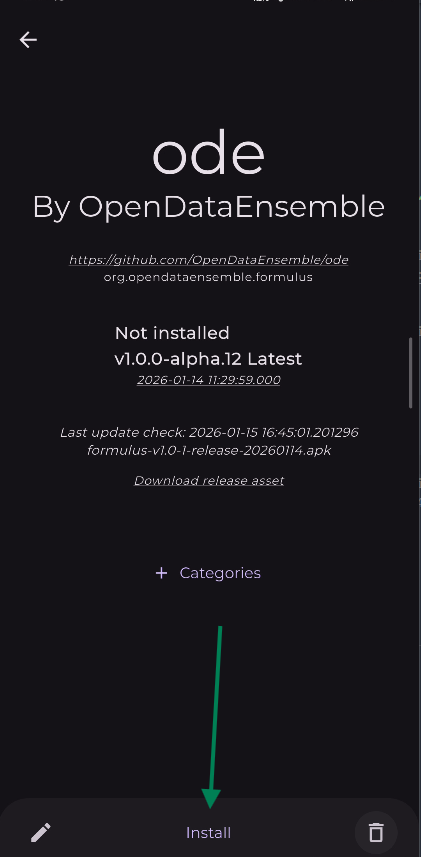
- Find "ode" in your apps list (it should appear after adding the repository)
- Tap on "ode" to open the app details page
- Review the app information:
- App name: ode
- Developer: OpenDataEnsemble
- Package:
org.opendataensemble.formulus - Latest version:
v1.0.0-alpha.12(or current version) - Status: Not installed
- Tap the "Install" button at the bottom of the screen
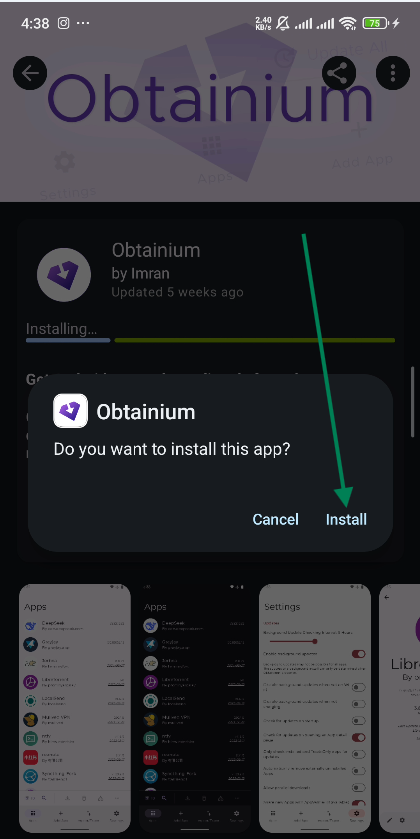
- Confirm installation when prompted:
- A dialog will appear showing the Formulus app icon and asking "Do you want to install this app?"
- Tap "Install" in the confirmation dialog (the "Cancel" button is on the left)
- Wait for download and installation to complete
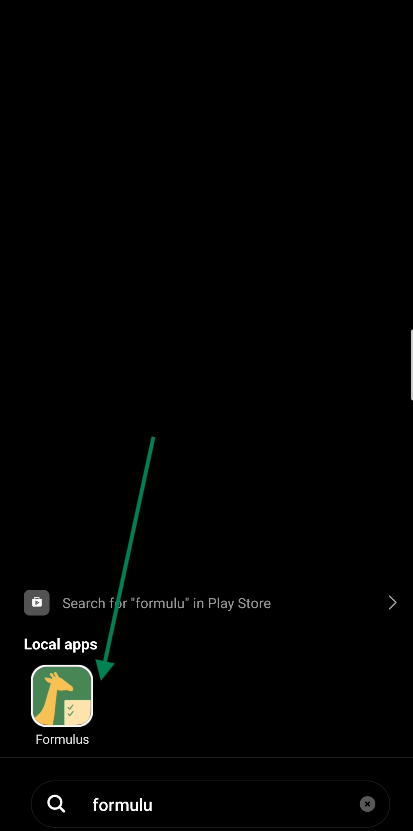
- Find Formulus in your app drawer or search for it:
- Open your app drawer or launcher
- Search for "Formulus" or "formulu"
- The app icon shows a yellow giraffe head with a green background and white clipboard
- Tap on Formulus to launch the app
Automatic Updates
Obtainium will automatically check for updates:
- Open Obtainium and navigate to the "Apps" tab
- Apps with available updates will be marked
- Tap on "ode" to see update details
- Tap "Update" or "Install" to install the new version
- Confirm the update when prompted
- App data is preserved during update
Method 2: Direct APK Installation
If Obtainium is not available or you prefer direct installation:
Step 1: Download the APK
- Download the latest APK from the releases page
- Save the file to your device's Downloads folder
Step 2: Enable Unknown Sources
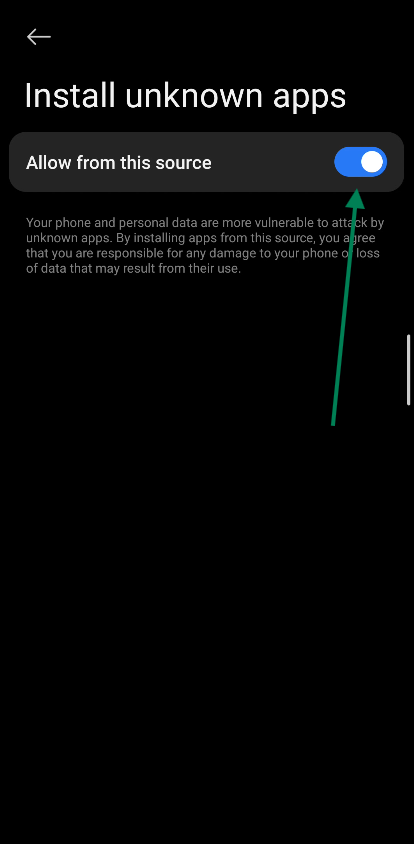
- Go to Settings → Security (or Apps → Special app access → Install unknown apps on newer Android versions)
- Select your browser or file manager from the list (e.g., Chrome, Firefox, Files)
- Enable "Allow from this source" toggle switch
- Read and acknowledge the security warning:
"Your phone and personal data are more vulnerable to attack by unknown apps. By installing apps from this source, you agree that you are responsible for any damage to your phone or loss of data that may result from their use."
Step 3: Install the APK
- Open your file manager or Downloads app
- Navigate to the Downloads folder
- Tap on the Formulus APK file
- Review the permissions requested by the app
- Tap "Install" to begin installation
- Wait for installation to complete
- Tap "Open" to launch the app
Method 3: Development Build
For developers who want to build and install from source, see the Development Installation Guide.
Post-Installation Setup
After installing Formulus, you need to configure it to connect to your Synkronus server:
Initial Configuration
- Open Formulus on your device
- You'll see the welcome screen with configuration options
- Choose your configuration method:
- QR Code Scan (Recommended) - Scan a QR code with server details
- Manual Entry - Enter server URL and credentials manually
QR Code Configuration
- Tap "Scan QR Code" on the welcome screen
- Grant camera permission if prompted
- Point the camera at the QR code provided by your administrator
- Settings auto-populate with server URL, username, and password
- Tap "Connect" to verify and save the configuration
Manual Configuration
- Tap "Manual Configuration" on the welcome screen
- Enter Server URL:
http://your-server-ip:8080orhttps://your-server-domain - Enter Username: Your username provided by your administrator
- Enter Password: Your password
- Tap "Test Connection" to verify connectivity
- Tap "Save" to store the configuration
First Login
- After configuration, you'll be prompted to log in
- Credentials should be pre-filled (if using QR code)
- Tap "Login" to authenticate
- Wait for authentication - A token is stored locally for future sessions
- You'll be redirected to the main app interface
Verification
To verify that Formulus is installed correctly:
- Check app icon appears in your app drawer
- Open the app and verify it launches without errors
- Check Settings to confirm server configuration is saved
- Test connection by tapping "Test Connection" in Settings
- Verify login by logging in with your credentials
Troubleshooting Installation
Installation Fails
Problem: APK installation fails with "App not installed" error.
Solutions:
- Ensure you have enough storage space (at least 50 MB free)
- Check that "Unknown Sources" is enabled for your file manager
- Try downloading the APK again (file may be corrupted)
- Ensure your device meets minimum Android version requirements (7.0+)
App Crashes on Launch
Problem: Formulus crashes immediately after opening.
Solutions:
- Restart your device
- Clear app data: Settings → Apps → Formulus → Storage → Clear Data
- Uninstall and reinstall the app
- Check that your device has sufficient RAM available
Cannot Connect to Server
Problem: App cannot connect to the Synkronus server.
Solutions:
- Verify server URL is correct (check for typos)
- Ensure device has internet connection
- Check that server is running and accessible
- Verify firewall settings aren't blocking the connection
- For local development, use
10.0.2.2instead oflocalhoston Android emulator
Obtainium Not Finding Updates
Problem: Obtainium doesn't show Formulus updates.
Solutions:
- Ensure the ODE repository is added correctly in Obtainium
- Check that "Include prereleases" is enabled if you want pre-release versions
- Refresh Obtainium: Open the app and wait for it to check for updates
- Check that Obtainium has internet connection
- Verify repository URL is correct:
https://github.com/OpenDataEnsemble/ode
Updating Formulus
Via Obtainium
- Open Obtainium and navigate to the "Apps" tab
- Find "ode" in your apps list
- Tap on "ode" to see update information
- Tap "Install" or "Update" if a newer version is available
- Confirm the installation when prompted
- App data is preserved during update
Via Direct APK
- Download the latest APK from the releases page
- Install over existing installation (no need to uninstall)
- App data is preserved during update
Uninstalling Formulus
To uninstall Formulus:
- Go to Settings → Apps (or Application Manager)
- Find Formulus in the app list
- Tap on Formulus
- Tap "Uninstall"
- Confirm uninstallation
Note: Uninstalling will remove all local data, including:
- Saved observations (not yet synced)
- App configuration
- Cached app bundles
- Local database
Important: Ensure all data is synced to the server before uninstalling.
Finding Formulus After Installation
After installation, you can find and launch Formulus:
- Open your app drawer or launcher
- Search for "Formulus" or "formulu" using your device's search function
- Look for the Formulus icon: A yellow giraffe head with a green background and white clipboard with checkmarks
- Tap on the Formulus icon to launch the app
Related Documentation
- Formulus Features - Learn about app features and usage
- Your First Form - Get started with data collection
- Synchronization - Understand how data syncs work
- Development Installation - For developers building from source